Anthropic’s Claude Code CLI brings conversational, autonomous AI coding capabilities directly into your terminal workflow. Unlike simple chat interfaces, Claude Code operates directly over your local repository filesystem, allowing it to edit source files, execute test suites, analyze multi-file architectures, and issue git commands seamlessly.
This comprehensive guide covers the official installation methods, environment configurations, authentication setup, and diagnostic procedures for macOS, Linux, and Unix-like environments.
[!WARNING] Deprecated Installation Advice: Prior tutorials recommended installing Claude Code globally via npm (
npm install -g @anthropic-ai/claude-code). Anthropic has officially deprecated the global npm method for general developer usage. npm global packages lack automated background self-updates, leaving installations vulnerable to API breaking changes and stale model schemas. Always use the official native installer scripts detailed below.
Operating System Installation Matrix
Choose the appropriate installation vector based on your development environment:
| Operating System | Recommended Vector | Primary Installer Command | Fallback / Alternative Vector | Auto-Updates Supported? |
|---|---|---|---|---|
| macOS (Apple Silicon & Intel) | Native Shell Script | curl -fsSL https://claude.ai/install.sh | bash | brew install --cask claude-code | Yes |
| Linux (Ubuntu / Debian / Arch) | Native Shell Script | curl -fsSL https://claude.ai/install.sh | bash | Standalone Binary Download | Yes |
| Windows (WSL2 Ubuntu) | Linux Native Script | curl -fsSL https://claude.ai/install.sh | bash | PowerShell Native Script (install.ps1) | Yes |
| Legacy CI / Containers | npm Package (Deprecated) | npm install -g @anthropic-ai/claude-code | Docker Container Image | No (Manual) |
Step 1: Pre-Installation Prerequisites
Before installing the native binary script, ensure your environment meets the minimum runtime requirements:
- POSIX-compliant Shell:
zsh(default on macOS) orbash(default on Linux/WSL). - Curl & Git Utilities: Verify utility availability:
curl --version git --version - Node.js (Optional / Legacy Fallback): While the native installer packages its own lightweight binary wrapper, Node.js v18.0.0+ is recommended if utilizing custom Node-based tool integrations:
node -v
Step 2: Primary Native Installation (macOS & Linux)
The official native installer script downloads precompiled, platform-specific binaries and configures local user PATH entries automatically.
Running the Installation Script
Open your terminal and execute:
curl -fsSL https://claude.ai/install.sh | bashScript Execution Breakdown
flowchart TD
    Start[Execute curl script] --> DetectOS{Detect Platform & Arch}
    DetectOS -->|macOS arm64/x64| FetchDarwin[Download Claude Darwin Binary]
    DetectOS -->|Linux x64/arm64| FetchLinux[Download Claude Linux Binary]
    FetchDarwin --> VerifyChecksum[Verify Cryptographic Checksum]
    FetchLinux --> VerifyChecksum
    VerifyChecksum --> InstallPath[Copy Binary to ~/.claude/bin]
    InstallPath --> UpdateShell[Append PATH entry to ~/.zshrc or ~/.bashrc]
    UpdateShell --> Finish[Installation Complete]
The installer performs the following operations:
- Detects your CPU architecture (
arm64vsx86_64) and operating system (darwinvslinux). - Downloads the verified cryptographic binary into
~/.claude/bin. - Appends
export PATH="$HOME/.claude/bin:$PATH"into your active shell configuration (~/.zshrc,~/.bashrc, or~/.config/fish/config.fish).
Reloading Your Shell Environment
To apply the updated PATH variable without restarting your terminal session, run:
# For Zsh users (default on macOS)
source ~/.zshrc

# For Bash users (default on Linux)
source ~/.bashrc
Verify binary placement and active version:
claude --versionAlternative Installation Vectors
Homebrew Installation (macOS)
If your organization manages CLI tooling via Homebrew, install Claude Code using the official Cask formula:
brew install --cask claude-codeTo upgrade a Homebrew installation in the future:
brew upgrade --cask claude-codeLegacy npm Global Installation (Deprecated)
If you must install Claude Code inside a locked environment where shell curl scripts are restricted, use the legacy npm package:
npm install -g @anthropic-ai/claude-code[!NOTE] If installing via npm on Linux, avoid running
sudo npm install -gas root permissions can corrupt internal file locks. Use a Node Version Manager (nvm) to install npm packages in user-space directory paths (~/.nvm/versions/node/...).
Step 3: API Key Authentication & Configuration
Claude Code requires an active Anthropic API Key or an OAuth session associated with an Anthropic Console or Claude Pro/Team plan.
Setting Up Environment Variables
Export your API Key in your shell startup file (~/.zshrc or ~/.bashrc):
export ANTHROPIC_API_KEY="sk-ant-api03-your-actual-api-key-here"Apply the variable immediately:
source ~/.zshrcWeb OAuth Authentication Flow
If you do not manually export ANTHROPIC_API_KEY, Claude Code will launch an interactive Web OAuth browser flow on first launch:
claude login- The CLI displays a 1-time verification code and opens your browser.
- Authenticate using your Anthropic Console credentials.
- Paste the authorization token back into your terminal prompt to complete credential storage in
~/.claude/settings.json.
Step 4: Environment Diagnostics (claude doctor)
Anthropic provides an automated diagnostic sub-command to audit local installation state, permission boundaries, and API connectivity.
Run the diagnostic suite anytime you experience connection drops or permissions issues:
claude doctorExample Diagnostic Output
Claude Code Environment Health Check v1.4.2
===========================================
[✓] Operating System: macOS 15.2 (darwin-arm64)
[✓] Shell Environment: /bin/zsh
[✓] Binary Placement: ~/.claude/bin/claude (Valid PATH entry)
[✓] Background Auto-Updater: Active (Service running)
[✓] Anthropic API Connectivity: 200 OK (Latency: 42ms)
[✓] Authentication State: Valid API Key detected (sk-ant-api03...)
[✓] Git Worktree Capabilities: Installed (git v2.47.1)
[✓] Tool Execution Environment: All permissions configured
===========================================
Result: 0 Errors, 0 Warnings. Ready for deployment.
Step 5: Version Management & Auto-Updates
Native script installations include a background daemon that periodically checks Anthropic’s release servers for security patches and performance updates.
Manual Update Triggers
To force an immediate check and update to the latest stable release:
claude updateTo switch to experimental release channels:
claude update --channel betaCI/CD Pipeline & Non-Interactive Integration
Claude Code can be executed inside headless CI/CD pipelines (such as GitHub Actions or GitLab CI) to perform automated code reviews, refactoring checks, or documentation generation.
GitHub Actions Workflow Example
Create .github/workflows/claude-audit.yml:
name: Claude Code Automated Repository Audit

on:
  pull_request:
    branches: [ main ]

jobs:
  claude-audit:
    runs-on: ubuntu-latest
    steps:
      - name: Checkout Repository
        uses: actions/checkout@v4
        with:
          fetch-depth: 0

      - name: Install Claude Code Native Binary
        run: |
          curl -fsSL https://claude.ai/install.sh | bash
          echo "$HOME/.claude/bin" >> $GITHUB_PATH

      - name: Run Non-Interactive Code Review
        env:
          ANTHROPIC_API_KEY: ${{ secrets.ANTHROPIC_API_KEY }}
        run: |
          claude --dangerously-skip-permissions \
            -p "Analyze the latest commit diff for security vulnerabilities and performance bottlenecks. Output findings to audit-report.md"

      - name: Upload Audit Artifact
        uses: actions/upload-artifact@v4
        with:
          name: claude-audit-report
          path: audit-report.md
Comprehensive Security & Permission Guardrails
When operating in interactive mode, Claude Code enforces strict human-in-the-loop security boundaries before running destructive shell or filesystem operations.
sequenceDiagram
    autonumber
    participant User as Developer Terminal
    participant Agent as Claude Code Engine
    participant OS as Workspace Filesystem

    User->>Agent: "Refactor database schema and delete unused migrations"
    Agent->>OS: Read directory structure & migration files
    OS-->>Agent: File tree returned
    Agent->>User: PROMPT: "Allow Claude Code to delete 3 files in ./migrations?"
    alt User Confirms [Y]
        User-->>Agent: Permission Granted
        Agent->>OS: Execute file removal & edit operations
        OS-->>Agent: Success confirmation
        Agent-->>User: "Refactoring complete. 3 migrations deleted."
    else User Rejects [N]
        User-->>Agent: Permission Denied
        Agent-->>User: "Operation aborted by user. No files modified."
    end
Configurable Permission Modes
- Standard Interactive Mode (Default): Prompts developer approval before executing file writes, git commits, or shell bash commands.
- Auto-Approve Read Mode: Automatically allows directory listing and file reads, but prompts for shell execution and write operations.
- Non-Interactive Headless Mode (
--dangerously-skip-permissions): Used exclusively in isolated containers and CI/CD runners where no human operator is present.
Frequently Asked Questions
What command installs Claude Code CLI globally via npm?
While npm install -g @anthropic-ai/claude-code installs the legacy package, Anthropic now considers npm global installations deprecated for general development use. Use curl -fsSL https://claude.ai/install.sh | bash instead.
Which Node.js versions are supported by Claude Code CLI?
If using the legacy npm installer, Node.js v18.0.0 or higher is required. The native installer script operates standalone without requiring a separate Node.js system installation.
How do I switch between different API keys or organizations?
You can overwrite the active key by re-exporting export ANTHROPIC_API_KEY="new-key" in your shell profile, or run claude logout followed by claude login to authenticate with a different account.
Image Asset Specifications
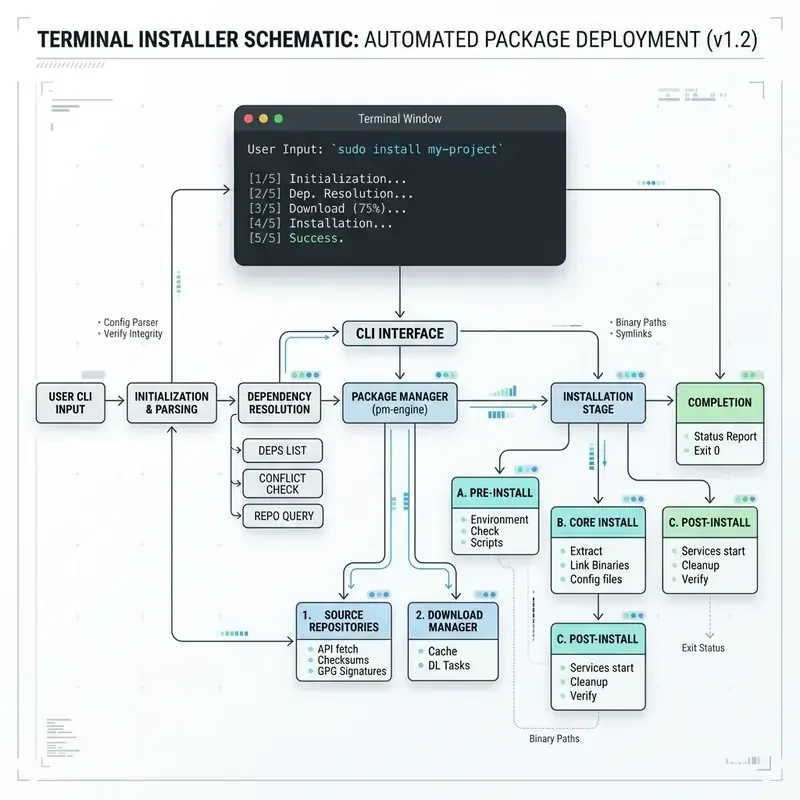
- Hero Visual:
- Prompt: “Minimalist terminal installer schematic showing package manager nodes and clean CLI interface illustration, modern tech documentation style”
- Filename: “claude-cli-hero.jpg”
- Alt text: “Minimalist terminal installer schematic showing package manager nodes and clean CLI interface”
- Placement: Hero header section
- Aspect Ratio: 16:9
Related Guides & Workflows
- For native Windows PowerShell and WSL2 configurations, read How to Install and Run Claude Code CLI on Windows.
- For an architectural deep dive into agent execution loops, see Inside Claude Code Agent: Terminal Loop Architecture.
- For Anthropic official certification pathways, explore Anthropic Claude Certification Guide.