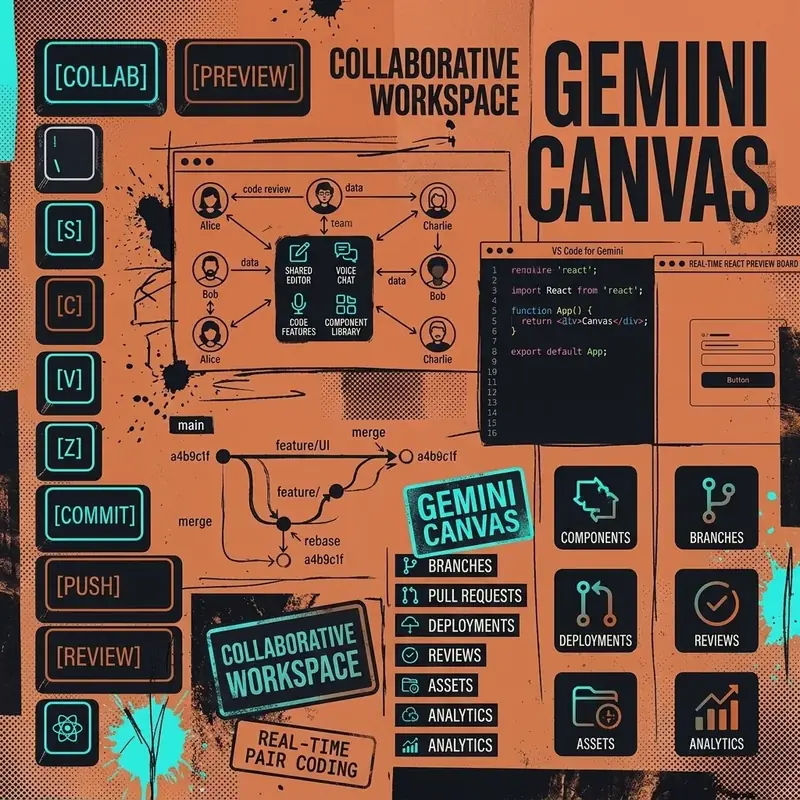
Google Gemini Canvas is an interactive workspace that sits alongside the standard chat interface. While regular Gemini conversations are ephemeral — responses scroll past and context fades — Canvas provides a persistent, editable surface where you and the AI collaborate on documents, code, and prototypes in real time.
Released on March 18, 2025, Canvas has evolved into a powerful tool for writers, developers, and content creators who need more than a chatbot — they need a creative partner with a shared workspace.
Understanding Canvas vs Regular Chat
The distinction is fundamental to how you work with Gemini:
| Aspect | Regular Gemini Chat | Gemini Canvas |
|---|---|---|
| Output | Scrollable message stream | Persistent editable document |
| Editing | Ask to regenerate entire response | Select and modify specific sections |
| Collaboration | AI responds, you read | AI and you edit the same surface |
| Export | Copy/paste | Google Docs, code files, Audio Overviews |
| Version Control | No history | Undo/redo and revision history |
| Best For | Quick Q&A | Long-form creation and iteration |
Think of regular chat as asking a colleague for help. Canvas is sitting down at the same desk and working on the document together.
Getting Started with Canvas
How to Open Canvas
- Navigate to gemini.google.com or open the Gemini app
- Start a new conversation
- Click the Canvas button in the prompt bar (looks like a document icon with a pencil)
- Alternatively, type a prompt that implies creation: “Write a blog post about…” — Gemini may automatically open Canvas
The Canvas Interface
The interface splits into two panels:
- Left panel: Chat conversation for giving instructions and feedback
- Right panel: The Canvas workspace showing your document or code
You interact with Canvas by:
- Typing instructions in the chat panel
- Directly editing text in the Canvas panel
- Selecting text and asking Gemini to modify it
- Using the toolbar for formatting, tone adjustment, and export
Writing with Canvas
Document Creation
Canvas excels at long-form document creation where you need iterative refinement:
"Write a 2000-word blog post about the future of remote work.
Include sections on: productivity tools, hybrid work models,
asynchronous communication best practices, and mental health
considerations."
Gemini generates the full document in the Canvas panel. From there, you can:
- Select any paragraph and ask Gemini to rewrite it
- Adjust tone using the toolbar (Professional, Casual, Academic, Creative)
- Expand or condense specific sections
- Add data or citations by asking Gemini to research and insert
- Restructure by asking Gemini to reorganize sections
Tone and Style Controls
The Canvas toolbar provides one-click tone adjustments:
| Button | Effect |
|---|---|
| More Professional | Formal language, passive voice, industry terminology |
| More Casual | Conversational tone, contractions, simpler vocabulary |
| Shorter | Condenses paragraphs, removes redundancy |
| Longer | Expands with examples, details, and supporting evidence |
Export Options
When your document is ready:
- Google Docs: One-click export preserving all formatting
- Audio Overview: Convert the document into a podcast-style audio summary
- Quiz: Transform educational content into an interactive quiz
- Infographic: Generate a visual summary of key points
- Copy as Markdown: For blog platforms and CMS systems
Coding with Canvas
Canvas is not just for writing — it is a capable development environment for prototyping and code generation.
Supported Languages and Frameworks
- HTML, CSS, JavaScript
- React / JSX
- Python
- TypeScript
- Node.js
Building a Prototype
"Create a responsive landing page for a SaaS product called
'TaskFlow'. Include a hero section with a headline and CTA button,
a features grid with 3 cards, a pricing table, and a footer.
Use modern design with a dark theme and purple accent colors."
Canvas generates the complete HTML/CSS/JavaScript and renders a live preview directly in the workspace. You can:
- See the live output in real-time as the code is generated
- Edit the code directly in the Canvas panel
- Ask Gemini to modify specific elements:
"Change the CTA button to gradient from purple to blue" "Add a testimonials section between features and pricing" "Make the pricing table responsive for mobile" - Preview on different screen sizes using the responsive toggle
Iterative Code Development
The power of Canvas for coding is the iterative workflow:
Step 1: "Create a basic calculator app in React"
Step 2: "Add keyboard support for number input"
Step 3: "Implement scientific functions (sin, cos, tan, log)"
Step 4: "Add a history panel that shows previous calculations"
Step 5: "Style it with a dark theme and rounded buttons"
Each step builds on the previous code, and you can see the result in real-time.
Code Export
- Copy code: Raw code to clipboard for any editor
- Download: As .html, .jsx, .py, or other appropriate file formats
- Open in Colab: Python code can be exported directly to Google Colab
- Replit integration: Deploy prototypes to Replit with one click
Advanced Canvas Workflows
Research-to-Document Pipeline
- Start a regular Gemini chat to research a topic
- Ask questions, gather information, and refine your understanding
- Once you have enough material, switch to Canvas:
"Based on our conversation, create a comprehensive report in Canvas covering all the key points we discussed" - Canvas synthesizes the entire conversation into a structured document
- Iterate and refine in the Canvas workspace
Collaborative Brainstorming
Canvas can function as a brainstorming whiteboard:
"Let's brainstorm 20 marketing campaign ideas for a sustainable
fashion brand. Organize them by category: social media, influencer,
content marketing, and experiential."
The ideas appear in Canvas where you can:
- Rate them (ask Gemini to score each idea)
- Expand favorites into full campaign briefs
- Delete weak ideas
- Reorganize by priority
Multi-Format Content Creation
Create multiple content formats from a single Canvas document:
"I have this blog post in Canvas. Now also create:
1. A Twitter thread version (10 tweets)
2. A LinkedIn post version (300 words, professional tone)
3. An email newsletter version with a CTA
4. A YouTube script version with timestamps"
Each format is generated and accessible within the same Canvas session.
Tips for Getting the Most from Canvas
1. Be Specific About Structure
Instead of: “Write an article about AI” Try: “Write a 1500-word article about AI in healthcare with these sections: Introduction (150 words), Current Applications (400 words), Challenges (300 words), Future Predictions (400 words), Conclusion (250 words)“
2. Use Selection-Based Editing
Instead of regenerating the entire document, select the specific paragraph or code block you want to change and give targeted instructions. This preserves everything you are happy with.
3. Leverage the Conversation Panel
The left chat panel maintains context about your creative goals. Use it to explain your overall vision, target audience, and constraints before asking Canvas to create.
4. Build Incrementally for Code
Start with a minimal working prototype, then add features one at a time. Canvas maintains code state between turns, so each addition builds on the last.
5. Export Early and Often
Canvas documents are cloud-saved, but exporting to Google Docs or downloading code files gives you a backup and makes sharing easier.
Subscription Tiers
| Feature | Free | Google AI Pro | Google AI Ultra |
|---|---|---|---|
| Basic Canvas (writing) | ✅ | ✅ | ✅ |
| Code generation & preview | ✅ | ✅ | ✅ |
| Tone adjustment tools | ✅ | ✅ | ✅ |
| Google Docs export | ✅ | ✅ | ✅ |
| Extended context (1M tokens) | ❌ | ✅ | ✅ |
| Advanced model (Gemini 3.x) | ❌ | ✅ | ✅ |
| Audio Overview export | ❌ | ✅ | ✅ |
Key Takeaways
- Gemini Canvas is a persistent, collaborative workspace — not an ephemeral chat
- Use it for long-form writing, code prototyping, and iterative document creation
- Live code preview lets you build and see functional prototypes in real-time
- Tone controls (Professional, Casual, Shorter, Longer) enable rapid style adjustments
- Export to Google Docs, Audio Overviews, quizzes, and code files with one click
- Available to all Gemini users globally with enhanced features for Pro/Ultra subscribers
- Best workflow: Research in chat → Create in Canvas → Iterate → Export