Anthropic’s Claude Code CLI brings autonomous terminal agent capabilities directly to Windows developers. Operating as an interactive agent, Claude Code can read multi-file project structures, execute shell commands, edit source files, and run test suites directly within your Windows terminal.
While macOS installation relies on POSIX shell scripts, running Claude Code on Windows requires specific setup for PowerShell execution policies, Git for Windows bash tools, and optional WSL2 (Windows Subsystem for Linux) environments.
This guide provides verified step-by-step instructions for installing and optimizing Claude Code natively on Windows PowerShell 7+ and inside WSL2 Ubuntu.
Windows Installation Matrix: Native PowerShell vs WSL2
| Setup Method | Primary OS Environment | Verified Native Install Command | Dependencies Required | Background Auto-Updates? |
|---|---|---|---|---|
| Native PowerShell (Recommended) | Windows 10/11 | irm https://claude.ai/install.ps1 | iex | Git for Windows (Bash tool) | Yes |
| WSL2 Ubuntu (Linux Core) | Windows 10/11 + WSL2 | curl -fsSL https://claude.ai/install.sh | bash | WSL2 Ubuntu & Curl | Yes |
| Legacy npm Method (Deprecated) | CMD / PowerShell | npm install -g @anthropic-ai/claude-code | Node.js v18+ & npm | No (Manual) |
Critical Requirement: Git for Windows (Bash Runtime)
Unlike standard CLI wrappers, Claude Code utilizes a background bash execution environment to invoke file system tools and execute project commands safely.
[!IMPORTANT] Git for Windows Mandate: If you are running Claude Code natively on Windows PowerShell or CMD without WSL2, you must install Git for Windows. Git for Windows bundles
bash.exeand standard GNU tools (grep,find,sed), allowing Claude Code to operate natively inside PowerShell windows.
Installing Git for Windows
- Download the 64-bit standalone installer from Git for Windows.
- During setup, ensure “Add Git and optional Unix tools to the Windows PATH” or standard Windows command prompt integration is checked.
- Verify installation in PowerShell:
git --version
bash --version
Step 1: Configure PowerShell Execution Policy
By default, Windows PowerShell restricts the execution of remote scripts downloaded from the internet. Before executing the Anthropic installer script, set your user-level execution policy to RemoteSigned:
Open PowerShell as your current user (or Administrator) and run:
Set-ExecutionPolicy -ExecutionPolicy RemoteSigned -Scope CurrentUserVerify your active execution policy settings:
Get-ExecutionPolicy -ListExpected output:
| Scope | ExecutionPolicy |
|---|---|
| MachinePolicy | Undefined |
| UserPolicy | Undefined |
| Process | Undefined |
| CurrentUser | RemoteSigned |
| LocalMachine | Undefined |
Step 2: Native Windows PowerShell Installation
Run Anthropic’s official native Windows installer script directly inside PowerShell:
irm https://claude.ai/install.ps1 | iexInstaller Execution Sequence
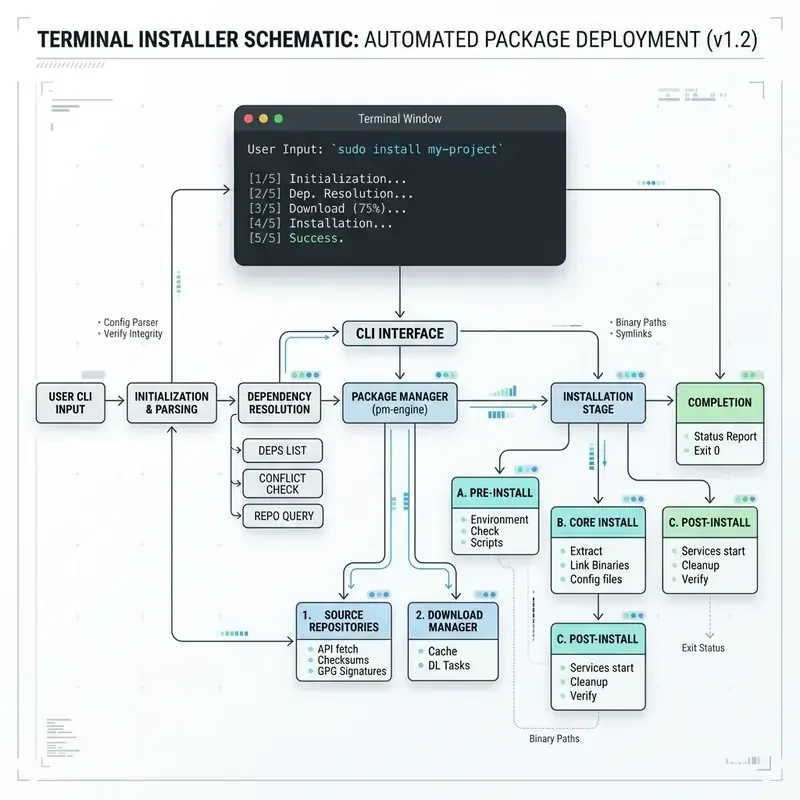
flowchart TD
    Start[Invoke install.ps1 via PowerShell] --> Download[Fetch Precompiled Windows Binary]
    Download --> Checksum[Verify SHA-256 Checksum]
    Checksum --> CopyPath[Extract Binary to AppData Local Claude]
    CopyPath --> PATHCheck{Is PATH entry registered?}
    PATHCheck -->|No| RegisterPATH[Add %LOCALAPPDATA%\Claude\bin to User PATH]
    PATHCheck -->|Yes| SkipPATH[Skip PATH registration]
    RegisterPATH --> BackgroundDaemon[Register Windows Auto-Update Service]
    SkipPATH --> BackgroundDaemon
    BackgroundDaemon --> Complete[Installation Successful]
The script automatically:
- Downloads precompiled native
x64Windows binaries (claude.exe). - Extracts files to
%LOCALAPPDATA%\Claude\bin(C:\Users\<Username>\AppData\Local\Claude\bin). - Registers
%LOCALAPPDATA%\Claude\bininto your Windows UserPATHenvironment variable. - Registers a lightweight Windows background updater service for automatic model schema and client updates.
Reloading Environment Path Variables
To use the claude command without restarting PowerShell, reload your environment variables:
$env:Path = [System.Environment]::GetEnvironmentVariable("Path","User") + ";" + [System.Environment]::GetEnvironmentVariable("Path","Machine")Confirm binary registration and version:
claude --versionStep 3: Configuring API Key Environment Variables
Claude Code requires authentication via an Anthropic API Key or interactive OAuth login.
Method A: Permanent Windows Environment Variable (Recommended)
Set your ANTHROPIC_API_KEY globally across all future PowerShell and CMD sessions:
[System.Environment]::SetEnvironmentVariable('ANTHROPIC_API_KEY', 'sk-ant-api03-your-actual-api-key-here', 'User')Verify the persistent variable:
$env:ANTHROPIC_API_KEYMethod B: Session-Only PowerShell Variable
If working on a shared or temporary developer machine, set the key for the current PowerShell session only:
$env:ANTHROPIC_API_KEY="sk-ant-api03-your-actual-api-key-here"Step 4: Alternative WSL2 Ubuntu Setup (Linux Native)
For developers working inside WSL2 (Windows Subsystem for Linux), install Claude Code using the native POSIX installer within your Ubuntu terminal.
Setting Up WSL2 & Claude Code
- Open PowerShell and verify WSL status:
wsl --status - Launch your WSL2 Ubuntu terminal:
wsl - Inside your Ubuntu prompt, install dependencies and run the official POSIX script:
sudo apt update && sudo apt install -y curl git curl -fsSL https://claude.ai/install.sh | bash source ~/.bashrc - Export your API Key inside
~/.bashrc:echo 'export ANTHROPIC_API_KEY="sk-ant-api03-your-actual-api-key-here"' >> ~/.bashrc source ~/.bashrc
[!TIP] WSL2 Workspace Performance: Keep your project repositories inside the WSL2 Linux filesystem (
/home/username/projects/) rather than accessing Windows mounts (/mnt/c/Users/...). Interop access across the/mnt/c/virtual drive can slow down workspace file indexing by up to 5x.
Step 5: Windows Diagnostics (claude doctor)
To verify your Windows environment status, run Anthropic’s automated diagnostic check:
claude doctorSample Windows Diagnostic Report
Claude Code Windows Health Check v1.4.2
===========================================
[✓] Windows Version: Windows 11 Build 22631 (x64)
[✓] Active Shell: PowerShell 7.4.2
[✓] Execution Policy: RemoteSigned (Valid)
[✓] Git for Windows: Installed (v2.47.0 - C:\Program Files\Git\cmd\git.exe)
[✓] Bash Binary Runtime: Verified (C:\Program Files\Git\bin\bash.exe)
[✓] Binary Location: C:\Users\Alice\AppData\Local\Claude\bin\claude.exe
[✓] Environment PATH: Valid entry registered
[✓] Anthropic API Connection: 200 OK (Latency: 51ms)
[✓] API Key Status: Valid key loaded from User Environment
===========================================
Result: 0 Errors, 0 Warnings. Ready for terminal operations.
Troubleshooting Common Windows Errors
1. The term 'claude' is not recognized as the name of a cmdlet
Root Cause: The %LOCALAPPDATA%\Claude\bin directory has not been reloaded into your active PowerShell session’s $env:PATH.
Fix:
- Close all PowerShell windows and open a fresh terminal.
- Manually append the PATH in your current window:
$env:Path += ";$env:LOCALAPPDATA\Claude\bin"
2. Claude Code requires bash. Please install Git for Windows
Root Cause: Claude Code cannot find bash.exe in your Windows PATH.
Fix:
- Install Git for Windows.
- Add
C:\Program Files\Git\binto your User Environment PATH variable:[System.Environment]::SetEnvironmentVariable('Path', $env:Path + ';C:\Program Files\Git\bin', 'User')
3. File C:\Users\...\install.ps1 cannot be loaded because running scripts is disabled
Root Cause: PowerShell script execution policy is set to Restricted.
Fix: Unblock script execution for the current user:
Set-ExecutionPolicy -ExecutionPolicy RemoteSigned -Scope CurrentUser4. EACCES or Permission Errors in PowerShell
Root Cause: Running npm global installations without proper user directory permissions.
Fix: Abandon npm installation and use the native install.ps1 script, which installs directly into user-space %LOCALAPPDATA% without requiring Administrator rights.
Image Asset Specifications
- Hero Visual:
- Prompt: “Minimalist technical illustration of terminal shell window with pastel blue and dark grey code lines on clean white background, developer tools editorial style”
- Filename: “claude-windows-hero.jpg”
- Alt text: “Minimalist technical diagram showing terminal execution of Claude Code on Windows”
- Placement: Hero header section
- Aspect Ratio: 16:9
Related Guides & Workflows
- For general cross-platform macOS and Linux installation, read How to Install and Set Up Claude Code CLI.
- For agent loop mechanics and security permissions, explore Inside Claude Code Agent: Terminal Loop Architecture.
- For Anthropic official certification pathways, read Anthropic Claude Certification Guide.