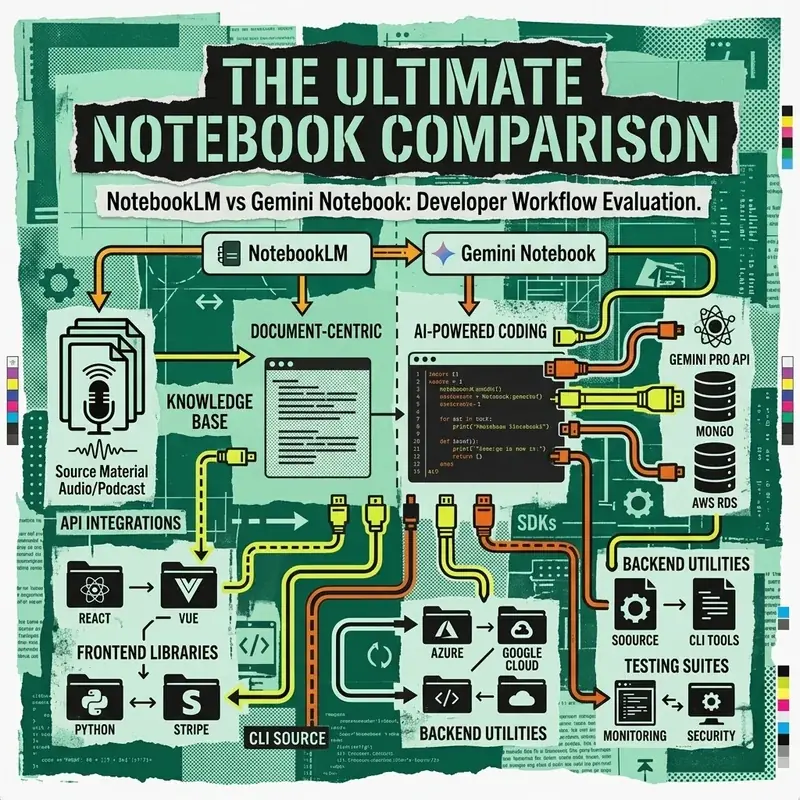
Google’s research assistant tool — formerly known as NotebookLM — has been rebranded to Gemini Notebook as of July 16, 2026. The name change reflects far more than a cosmetic update: it arrives alongside a wave of powerful agentic capabilities that transform the tool from a smart document reader into a full-featured AI research workstation.
This tutorial walks through every major feature, from basic notebook setup to advanced cloud code execution and multi-format document export.
What Changed in the Rebrand
The transition from NotebookLM to Gemini Notebook is not just a rename. Here is what is genuinely new versus what remains the same:
What’s New
| Feature | Before (NotebookLM) | After (Gemini Notebook) |
|---|---|---|
| Cloud Computer | Not available | Dedicated secure sandbox per notebook |
| Code Execution | No | Python execution with data analysis |
| Export Formats | Text, Audio Overview | PPTX, XLSX, DOCX, PDF, Charts |
| Ecosystem Sync | Standalone | Notes sync with Gemini App & Google Search |
| Source Discovery | Upload only | AI-powered web search to find sources |
| Model | Gemini 2.0 | Gemini 3.5+ |
What Stays the Same
- All existing notebooks remain intact — no migration needed
- Existing share links and collaborator permissions continue to work
- The core interaction model (sources → chat → notes) is unchanged
- Audio Overview feature still available
Step 1: Creating Your First Gemini Notebook
Getting Started
- Navigate to notebooklm.google.com (the URL still works post-rebrand)
- Sign in with your Google account
- Click “New Notebook”
- Give your notebook a descriptive title
Adding Sources
Sources are the foundation of every Gemini Notebook. The AI only generates responses grounded in the materials you provide, which eliminates hallucination for document-based research.
Supported source types:
- Google Docs, Google Slides
- PDF files (up to 500,000 words per document)
- Web URLs
- YouTube videos (with transcript)
- Plain text / Markdown
- Audio files (new in 2026)
Pro tip: Upload 5-10 diverse sources on your topic rather than one massive document. This gives the AI more angles to synthesize from and produces richer, more nuanced responses.
Starting from Scratch (New Feature)
Previously, you had to upload sources before you could interact with a notebook. Now, you can start with just a loose idea:
- Create a new notebook without any sources
- Describe your research topic in the chat
- Gemini Notebook will search the web and suggest relevant primary sources
- Review and approve the sources it finds
- The AI curates them into your notebook automatically
This feature is particularly powerful for exploratory research where you don’t yet know which papers, articles, or datasets are most relevant.
Step 2: Using the Secure Cloud Computer
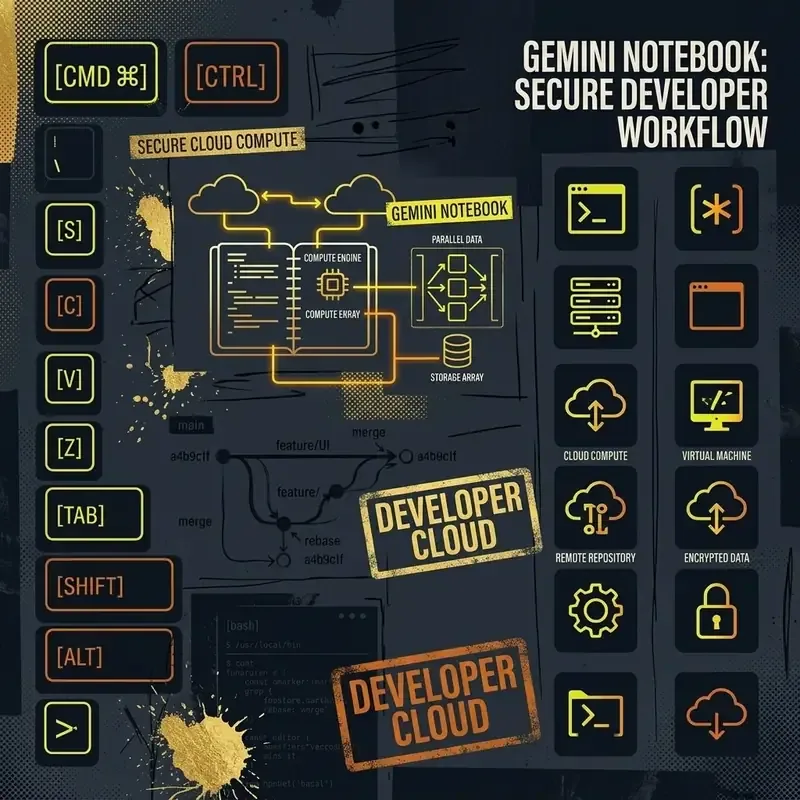
The most significant new feature is the secure cloud computer — a dedicated, sandboxed computing environment attached to each notebook.
What It Can Do
- Write and execute Python code
- Perform data analysis on your uploaded sources
- Reconcile messy or inconsistent datasets
- Generate professional charts and visualizations
- Create formatted tables from unstructured text
- Run statistical analyses and produce summary statistics
How to Use It
- Ask the AI a question that requires computation — for example: “Analyze the revenue data in my Q2 report and create a trend chart”
- Gemini Notebook will write Python code in the background
- The code executes in the secure sandbox (isolated from your local machine)
- Results appear inline — charts render directly in the chat, tables are formatted, and files are downloadable
Example Workflow: Data Analysis
Suppose you upload a CSV file with monthly sales data. You can ask:
"Compare Q1 vs Q2 performance across all product lines.
Create a grouped bar chart and highlight any products with
declining trends. Export the summary as a table."
The AI will:
- Parse your CSV using pandas
- Calculate quarter-over-quarter metrics
- Generate a matplotlib chart
- Render both the chart and summary table inline
- Offer to export as XLSX or PPTX
Security Model
The cloud computer is:
- Isolated: Each notebook gets its own sandbox — no cross-notebook access
- Ephemeral: Compute state is cleared after your session ends
- Restricted: No internet access from the sandbox — it can only process your uploaded sources
- Auditable: All code execution is logged and visible to you
Step 3: Generating Professional Documents
Gemini Notebook can now produce a variety of professional output formats, far beyond the original text and audio options.
Available Export Formats
| Format | Best For | How to Request |
|---|---|---|
| PPTX | Presentations, stakeholder decks | ”Create a presentation about…” |
| XLSX | Data tables, financial models | ”Export this analysis as a spreadsheet” |
| DOCX | Reports, briefs, memos | ”Write a formal report on…” |
| Final deliverables | ”Generate a PDF summary of…” | |
| Charts | Data visualization | ”Create a chart showing…” |
| Audio Overview | Podcast-style summaries | Click the Audio Overview button |
Creating a Presentation
"Create a 10-slide presentation summarizing the key findings from my
research sources. Include:
- Executive summary slide
- 3 data visualization slides with charts
- Competitive analysis comparison table
- Recommendations slide with bullet points
- Next steps and timeline"
The generated PPTX is fully editable in Google Slides or Microsoft PowerPoint — it’s not a read-only export.
Creating a Spreadsheet
For data-heavy research, ask Gemini Notebook to organize your findings into a structured spreadsheet:
"Create an Excel spreadsheet with all the pricing data from my sources.
Include columns for: Product Name, Free Tier Limits, Pro Price,
Enterprise Price, and Key Differentiators."
Step 4: Syncing Across the Google Ecosystem
One of the most practical changes in the rebrand is the ability to sync notes across the broader Google ecosystem.
How Syncing Works
- Notes → Gemini App: Your saved notes from any notebook can appear as context when you chat with Gemini in the main app
- Notes → Google Search: When you search for topics related to your research, Google can surface your own notebook findings in a dedicated sidebar
- Cross-Device: Notebooks sync across web, mobile, and tablet interfaces
Enabling Sync
- Open your notebook settings
- Toggle “Sync with Gemini” to enabled
- Choose which notes to sync (you can be selective)
- Synced notes will now appear as contextual suggestions when relevant
Privacy Considerations
- Synced notes are only visible to you — they are never shared with other users or used for model training
- You can disable sync at any time and delete synced data from your Gemini account
- Enterprise Workspace accounts have admin controls to enable or disable sync at the organization level
Step 5: Advanced Research Workflows
Multi-Source Synthesis
The most powerful use of Gemini Notebook is synthesizing insights across multiple, potentially conflicting sources:
"Compare what Source A and Source C say about the effectiveness of
retrieval-augmented generation. Where do they agree? Where do they
conflict? Which claims are supported by empirical data?"
Citation Tracking
Every response from Gemini Notebook includes inline citations pointing back to specific passages in your uploaded sources. Click any citation number to jump directly to the relevant paragraph.
Collaborative Research
Share your notebook with collaborators:
- Click the Share button
- Add collaborators by email
- Choose permission level (View, Comment, or Edit)
- All collaborators see the same sources, chat history, and generated notes
Subscription Tiers and Access
| Feature | Free | Google AI Pro | Google AI Ultra |
|---|---|---|---|
| Basic notebook creation | ✅ | ✅ | ✅ |
| Source upload (up to 50) | ✅ | ✅ | ✅ |
| Audio Overviews | ✅ | ✅ | ✅ |
| Cloud code execution | ❌ | Beta | ✅ |
| PPTX/XLSX/DOCX export | ❌ | Beta | ✅ |
| Gemini ecosystem sync | ❌ | Beta | ✅ |
| Web source discovery | ❌ | ✅ | ✅ |
Advanced features are rolling out first to Google AI Ultra subscribers and eligible Workspace enterprise users, with broader availability to Google AI Pro users expected in the coming weeks.
Key Takeaways
- NotebookLM is now Gemini Notebook — rebranded July 16, 2026 with major new capabilities
- Each notebook gets a secure cloud computer for Python code execution and data analysis
- Export to PPTX, XLSX, DOCX, PDF — not just text and audio
- Notes sync across Gemini App and Google Search for a connected research workflow
- Start from scratch — let the AI find and curate sources for you via web search
- Existing notebooks, links, and permissions all continue to work unchanged
Common Mistakes to Avoid
- Uploading too few sources: The AI performs best with 5-10 diverse, high-quality sources rather than a single massive document
- Ignoring citations: Always verify generated claims against the cited source passages — the AI is grounded but not infallible
- Not using structured prompts: Ask for specific output formats (tables, charts, bullet points) rather than open-ended questions
- Skipping the Audio Overview: The podcast-style summary is one of the best features for quickly absorbing the key themes across all your sources