Direct Answer for Users: To block ChatGPT ads and promo popups in non-Chrome browsers, install uBlock Origin (for Firefox and Microsoft Edge) or AdGuard (for Apple Safari), open your extension’s settings, navigate to My Filters, and paste cosmetic element-hiding rules targeting ChatGPT’s banner and modal containers. This strips sponsored partner suggestions and upgrade nags cleanly without breaking chat streaming.
While Google Chrome and Brave represent a massive share of web users, millions of professionals and developers rely on Mozilla Firefox for privacy, Microsoft Edge for enterprise integrations, and Apple Safari for macOS battery efficiency.
As OpenAI introduces sponsored recommendations and persistent promotional banners into the ChatGPT web interface, users across all browsers are experiencing cluttered screens and disrupted workflows.
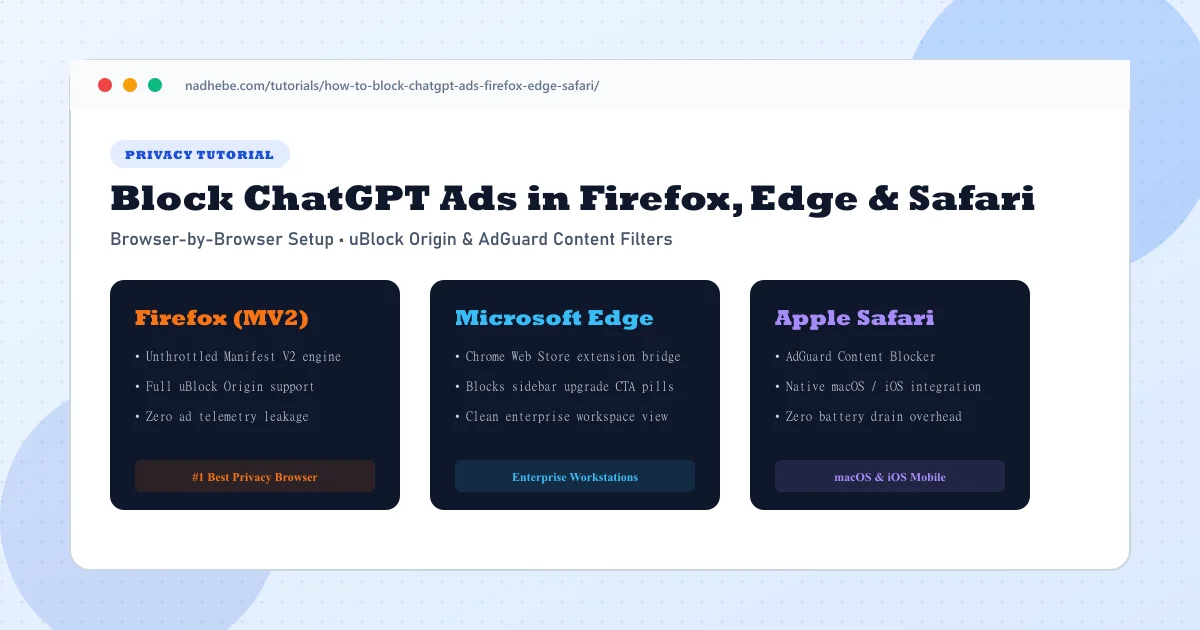
Here is the complete browser-by-browser tutorial to restore a clean, ad-free ChatGPT interface in Firefox, Edge, and Safari.
1. How to Block ChatGPT Ads in Mozilla Firefox
Firefox is currently the gold standard for ad blocking because Mozilla continues to support Manifest V2, giving extensions like uBlock Origin unthrottled filtering power.
[SCREENSHOT: Firefox Add-ons Manager showing uBlock Origin installed with active shield badge on chatgpt.com]
Step-by-Step Firefox Setup:
- Open Firefox and navigate to the Firefox Add-ons Marketplace (
addons.mozilla.org). - Search for uBlock Origin (by Raymond Hill) and click Add to Firefox.
- Open a new tab and go to
chatgpt.com. - Click the red uBlock Origin shield icon in your Firefox toolbar.
- Click the Dashboard (Gears Icon) $\rightarrow$ My Filters.
- Paste the following cosmetic filter rules:
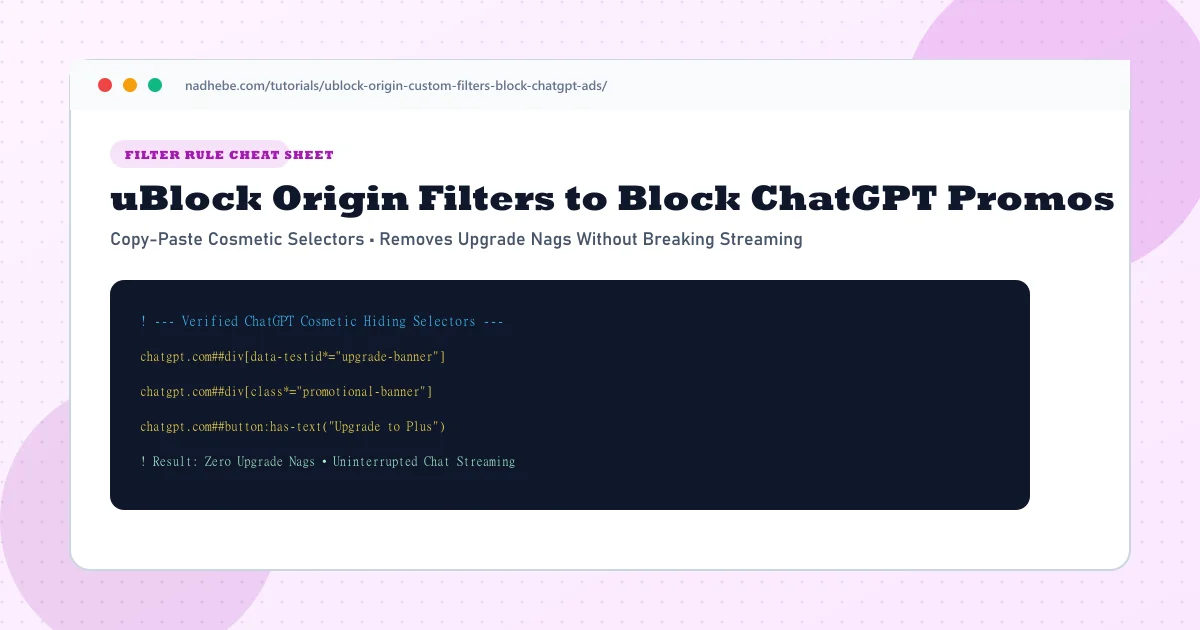
! --- Block ChatGPT Promos and Upgrade Banners in Firefox ---
chatgpt.com##div[data-testid="upgrade-banner"]
chatgpt.com##div[class*="promotional-card"]
chatgpt.com##button:has-text("Upgrade to Plus")
chatgpt.com##div:has-text("Try Pro for team")
chatgpt.com##aside div[class*="partner-recommendation"]- Click Apply Changes. Reload
chatgpt.comto enjoy a completely uncluttered interface.
If you also use Chromium browsers, review our companion tutorial on how to block ChatGPT ads in Chrome and Brave.
2. How to Block ChatGPT Ads in Microsoft Edge
Microsoft Edge runs on the Chromium engine, meaning it can run extensions from both the Microsoft Edge Add-ons store and the Google Chrome Web Store.
[SCREENSHOT: Microsoft Edge Extensions page with Developer Mode and External Extensions enabled]
Step-by-Step Edge Setup:
- In Microsoft Edge, navigate to
edge://extensions. - In the left-hand rail, toggle “Allow extensions from other stores” to ON.
- Visit the Chrome Web Store or Edge Add-ons Store and search for uBlock Origin.
- Click Get or Add to Chrome.
- Once installed, pin the extension to your Edge toolbar.
- Open uBlock Origin settings $\rightarrow$ My Filters, paste the same cosmetic filter rules, and click Apply changes.
3. How to Block ChatGPT Ads in Apple Safari (macOS & iOS)
Because Apple Safari does not support traditional WebExtensions directly without native App Store wrappers, you need a specialized Content Blocker.
[SCREENSHOT: Safari Preferences > Extensions tab showing AdGuard Content Blocker enabled]
Step-by-Step Safari Setup:
- Open the Mac App Store on your Mac (or App Store on iPad/iPhone).
- Download AdGuard for Safari or Wipr (both are privacy-respecting and open-source).
- Open Safari and go to Settings (Cmd + ,) > Extensions.
- Check all boxes to enable AdGuard’s filtering engines (AdGuard Custom, AdGuard Privacy, etc.).
- Open the AdGuard menu in your menu bar $\rightarrow$ User Rules.
- Add the cosmetic CSS selectors:
chatgpt.com###upgrade-button chatgpt.com##div[class*="sponsored"] chatgpt.com##div[class*="banner"] - Refresh Safari. The interface will instantly drop all promotional banners.
4. Verification Checklist: How to Know It’s Working
- The blue/purple “Upgrade” button in the bottom left sidebar is hidden.
- No sponsored partner cards appear beneath your prompt input bar.
- Chat generation streams smoothly with zero lag or disconnects.
- Mobile browser interfaces (Firefox Mobile / Safari iOS) retain maximum vertical screen real estate for actual text responses.
By applying these lightweight cosmetic rules, you can work inside ChatGPT across any browser without annoying marketing interruptions.