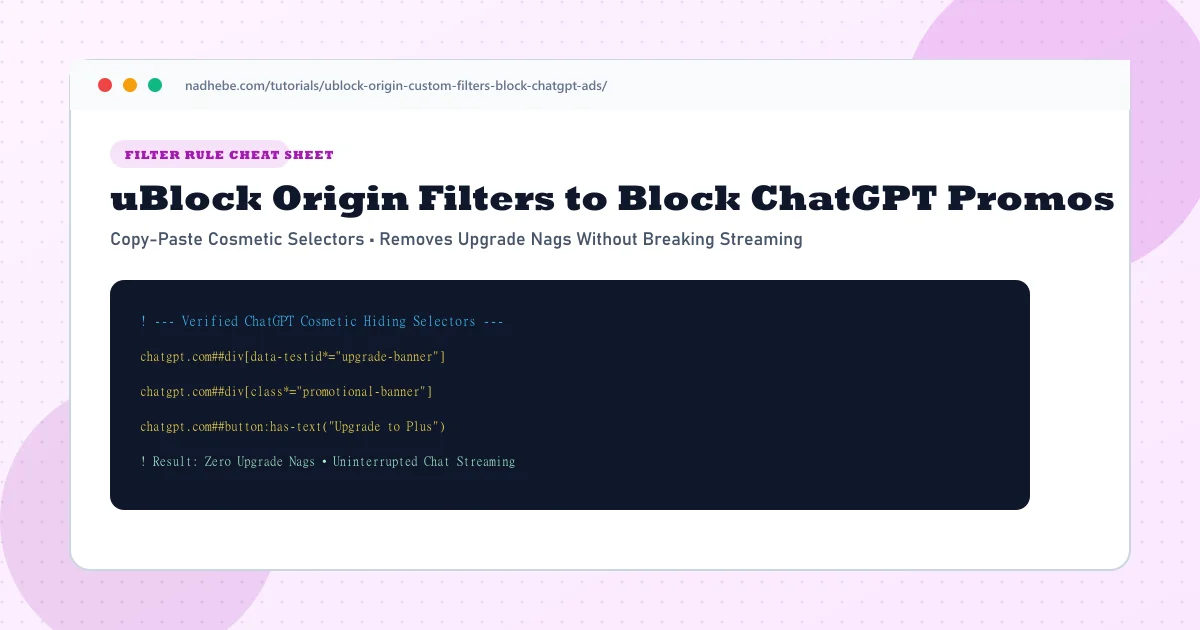
Direct Answer for Power Users: To block ChatGPT ads and promo banners with uBlock Origin, open uBlock Origin Dashboard > My Filters and paste these verified cosmetic rules:
chatgpt.com##div[data-testid*="upgrade"],chatgpt.com##div[class*="promotional"], andchatgpt.com##button:has-text("Upgrade to Plus"). Click Apply Changes to strip all marketing banners and subscription popups cleanly while keeping chat streams 100% functional.
As OpenAI tests sponsored partner cards, team subscription alerts, and upgrade promotions inside the free ChatGPT web interface, regular users find their chat window cluttered with persistent marketing overlays.
While generic ad blocker filter lists (like EasyList) catch third-party banner networks, they frequently miss first-party promotional UI elements.
Here are the exact, battle-tested uBlock Origin filter rules you can copy and paste right now to achieve a clean, distraction-free ChatGPT workspace.
1. The Master Copy-Paste Filter List for ChatGPT
Copy the code block below:
! ============================================================
! Nadhebe Verified uBlock Origin Filters for ChatGPT (2026)
! Removes: Upgrade buttons, partner cards, sponsored promos
! Safe: Does NOT break chat streaming, model pickers, or inputs
! ============================================================

! 1. Hide Sidebar Upgrade & Team Subscription Banners
chatgpt.com##div[data-testid="upgrade-button"]
chatgpt.com##div[data-testid="team-plan-cta"]
chatgpt.com##nav a[href*="/pricing"]:has-text("Upgrade")
chatgpt.com##nav div:has-text("Upgrade plan")

! 2. Remove Bottom Prompt Bar Partner Promo Badges
chatgpt.com##div[class*="promotional-banner"]
chatgpt.com##div[class*="partner-card"]
chatgpt.com##aside div[class*="announcement"]

! 3. Block Modal Popups & "Try Plus" Overlays
chatgpt.com##div[role="dialog"]:has-text("Get unlimited access with Plus")
chatgpt.com##div[role="dialog"]:has-text("Upgrade to Team")
chatgpt.com##div[class*="modal"]:has(button:has-text("Upgrade"))

! 4. Clean Mobile Viewport Header Clutter
chatgpt.com##header a:has-text("Upgrade")
chatgpt.com##div[class*="floating-promo"]
[SCREENSHOT: uBlock Origin Dashboard > My Filters tab showing the pasted rules and the green Apply Changes button highlighted]
2. Step-by-Step Installation: How to Add the Rules
- Click the red uBlock Origin shield icon in your browser toolbar.
- Click the Dashboard (Two Crossed Gears) icon in the bottom right of the popup.
- In the top navigation tabs, select My Filters.
- Scroll to the bottom of the text box, paste the code block above on a new line.
- Click Apply Changes in the top left corner.
- Open or refresh
chatgpt.com. All upgrade banners, promotional partner cards, and subscription nags will disappear instantly.
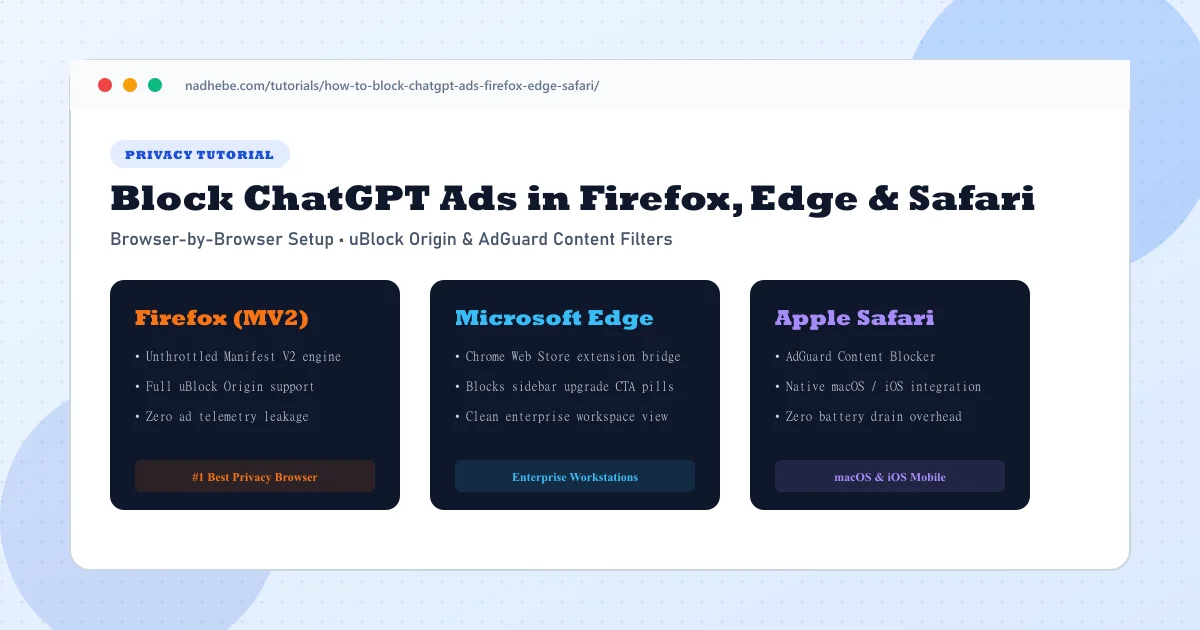
For multi-browser setup across non-Chrome browsers, review our guide on how to block ChatGPT ads in Firefox, Edge, and Safari.
3. How to Use the Element Picker for New ChatGPT Layout Changes
If OpenAI pushes a frontend design update that introduces a new promotional element not covered by this list, you can block it yourself in 5 seconds using uBlock Origin’s visual Element Picker:
[SCREENSHOT: Browser screen showing uBlock Origin’s Element Picker red overlay highlighting a newly added ChatGPT promo badge]
- Right-click the offending promotional banner.
- Select Block element… (or click the uBlock Origin extension icon and select the Eyedropper icon).
- Hover your cursor over the element until the red highlight box covers the promotional container. Click to select it.
- An inspector dialog will appear in the bottom right showing the detected CSS selector.
- Click Create to permanently save the rule to your personal filter list.
4. Why Cosmetic Filtering is Safer Than Network Blocking
Many users attempt to block ChatGPT ads by blacklisting network domain names or blocking scripts. This frequently breaks WebSocket connections and corrupts text streaming.
- Network Blocking: Intercepts HTTP/WebSocket packets. If a rule accidentally blocks an OpenAI analytics payload that shares an API gateway with model generation, your chat session crashes with
"Network Error". - Cosmetic Filtering (Our Approach): Lets the network connection run unimpeded, but applies CSS
display: none !important;directly in your browser’s local rendering engine. Your chat remains 100% reliable, private, and fast.
Bookmark this page to keep your AI development and prompting environment clean, private, and focused on pure productivity.