Direct Answer for Builders: To run DeepSeek R1 locally on a consumer GPU, install Ollama and run one of DeepSeek’s official distilled models matched to your VRAM size: run
ollama run deepseek-r1:7bfor 8GB GPUs,ollama run deepseek-r1:14bfor 12GB GPUs, orollama run deepseek-r1:32bfor 24GB GPUs. These distilled checkpoints capture over 90% of the full 671B flagship model’s multi-step chain-of-thought reasoning while running at 30 to 60 tokens per second on consumer hardware.
The release of DeepSeek-R1 fundamentally altered the open-source AI ecosystem. By leveraging pure reinforcement learning, R1 matches the complex reasoning, coding, and mathematical benchmarks of proprietary models like OpenAI o1—while open-sourcing model weights under the permissive MIT license.
While the flagship 671B Mixture-of-Experts (MoE) model requires datacenter infrastructure, DeepSeek’s distilled models (ranging from 1.5B to 70B parameters) allow any developer with a standard consumer graphics card to run state-of-the-art chain-of-thought reasoning locally.
Here is the complete step-by-step tutorial to install, configure, and benchmark DeepSeek R1 on your local workstation.
1. Hardware Sizing: Which DeepSeek R1 Model Fits Your GPU?
Never guess which model to download. Matching model parameter size to your exact VRAM prevents painful out-of-memory errors:
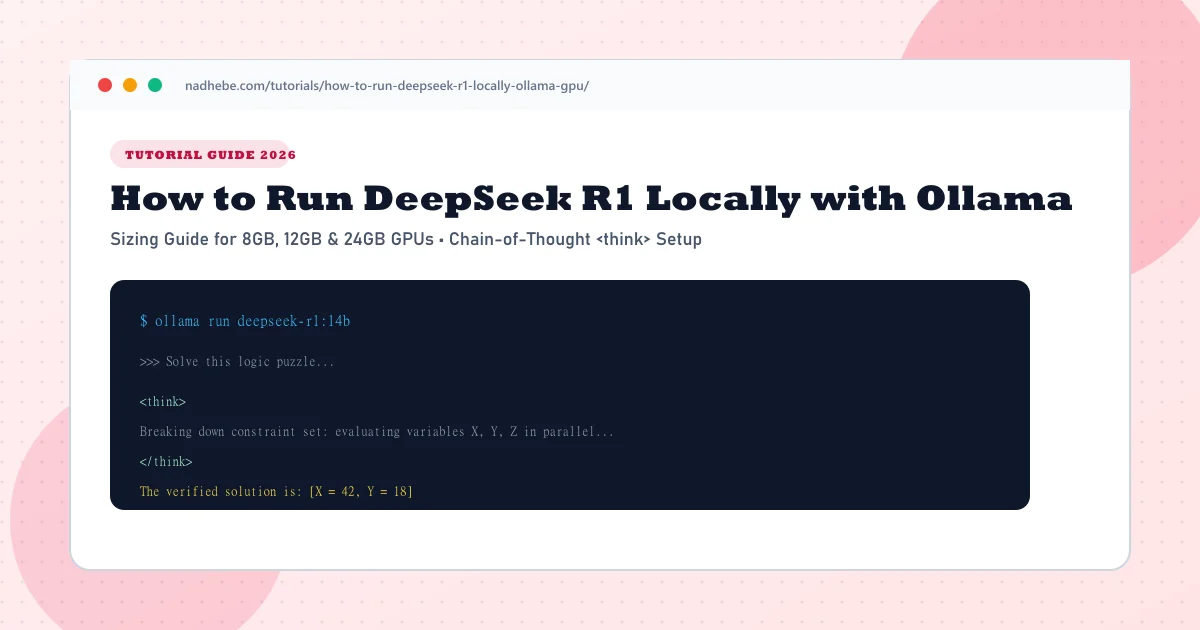
[SCREENSHOT: Terminal window displaying ollama run deepseek-r1:14b generating active chain-of-thought <think> tokens]
Calculate your exact context headroom for any graphics card with our GPU VRAM Calculator.
| GPU VRAM Tier | Example Consumer GPUs | Recommended Distilled Model | GGUF Quant | VRAM Footprint | Expected Speed |
|---|---|---|---|---|---|
| 6GB – 8GB | RTX 3060 8GB, RTX 4060, Apple M1/M2 8GB | deepseek-r1:7b (Qwen) | Q4_K_M | 4.9 GB | 45 tok/s |
| 12GB | RTX 3060 12GB, RTX 4070, RTX 4070 Super | deepseek-r1:14b (Qwen) | Q4_K_M | 8.9 GB | 32 tok/s |
| 16GB | RTX 4080, RTX 4070 Ti Super, Mac 18GB/24GB | deepseek-r1:14b (High Quant) | Q8_0 | 14.8 GB | 42 tok/s |
| 24GB | RTX 3090, RTX 4090, Mac Studio | deepseek-r1:32b (Qwen) | Q4_K_M | 19.8 GB | 22 tok/s |
For general chat models on 8GB hardware, see our analysis of the best local LLMs for 8GB VRAM.
2. Step 1: Installing Ollama on Your Operating System
Ollama is the simplest and fastest inference engine for running GGUF-quantized models on macOS, Linux, and Windows.
Windows & macOS Installation:
- Navigate to
ollama.com/download. - Download the installer and run the setup wizard.
- Verify installation by opening PowerShell or Terminal and running:
ollama --version
Linux Installation (Ubuntu / Debian / Arch):
curl -fsSL https://ollama.com/install.sh | sh3. Step 2: Downloading and Running DeepSeek R1
Choose the command matching your graphics card’s VRAM:
# For 8GB VRAM (RTX 3060 8GB / RTX 4060):
ollama run deepseek-r1:7b

# For 12GB VRAM (RTX 3060 12GB / RTX 4070):
ollama run deepseek-r1:14b

# For 24GB VRAM (RTX 3090 / RTX 4090):
ollama run deepseek-r1:32b
Ollama automatically streams the quantized GGUF weights, allocates layers into GPU VRAM, and drops you directly into an interactive conversational terminal.
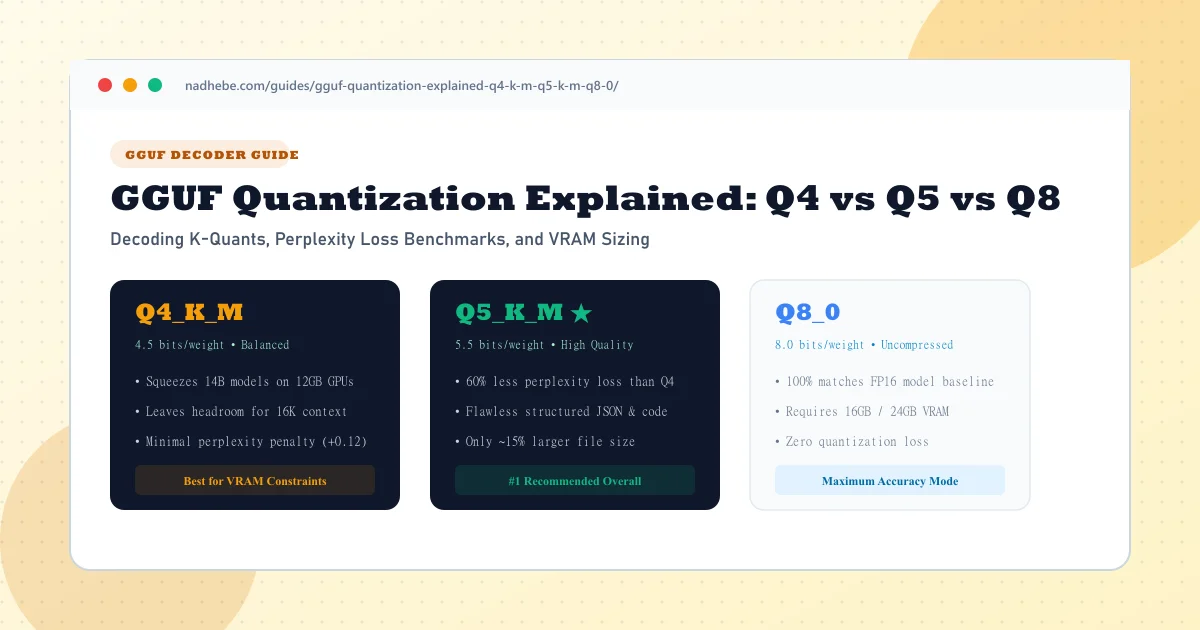
To learn how GGUF quantizations work under the hood, read our guide to GGUF quantization explained: Q4_K_M vs Q5_K_M vs Q8_0.
4. Understanding the <think> Reasoning Blocks
When you submit a prompt to DeepSeek R1, notice how it responds:
>>> A farmer has 17 sheep. All but 9 run away. How many sheep are left?

<think>
The user is asking a classic riddle/logic problem.
"A farmer has 17 sheep."
"All but 9 run away."
The key phrase is "all but 9".
This means 9 sheep remain with the farmer.
It does NOT mean 17 - 9 = 8.
Let's double-check: "All but nine" directly states that nine did not run away.
Therefore, the number of sheep left is 9.
</think>

The farmer has 9 sheep left.
The model generates its internal reasoning process inside <think> tags before delivering the final answer. This self-correction loop catches trick questions, logic traps, and off-by-one errors that traditional models stumble on.
5. Connecting DeepSeek R1 to a Graphical Chat Interface (Open WebUI)
If you prefer a clean, ChatGPT-style web interface with Markdown rendering, file uploads, and chat history:
[SCREENSHOT: Open WebUI browser interface showing DeepSeek R1 with collapsible reasoning steps and code blocks]
Run Open WebUI via Docker in your terminal:
docker run -d -p 3000:8080 \
  --add-host=host.docker.internal:host-gateway \
  -v open-webui:/app/backend/data \
  --name open-webui \
  --restart always \
ghcr.io/open-webui/open-webui:main- Open your browser and navigate to
http://localhost:3000. - Create an admin account (stored locally on your disk).
- Select
deepseek-r1:7bordeepseek-r1:14bfrom the model dropdown. - Enjoy a 100% private, self-hosted, frontier reasoning copilot.
Troubleshooting Common Errors
| Error Symptom | Cause | Solution |
|---|---|---|
| ”Error: out of memory” | Model weights + context exceed VRAM | Step down to a smaller parameter size (e.g. 14B $\rightarrow$ 7B) |
| Speed drops to 3 tokens/sec | Layers spilled into system CPU RAM | Close background apps and free GPU VRAM before launching |
Missing <think> reasoning block | System prompt stripped reasoning tags | Ensure client interface does not inject custom system prompts |
Running DeepSeek R1 locally gives you unprecedented logical reasoning power without sending proprietary data to third-party cloud servers.